Table of Contents
- Overview
- 7 things to check first
- Learn to read the status page
- Genspark can freeze or stall — that's not unusual
- New features are often unstable right after launch
- Possible causes when Genspark is slow
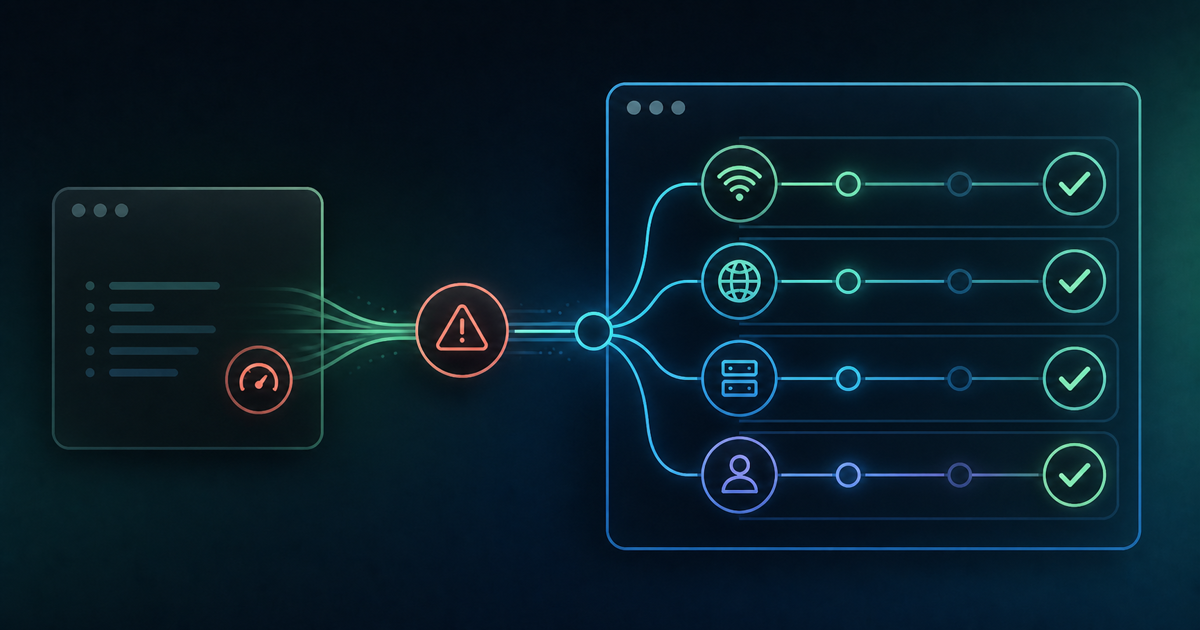
- When Genspark stalls mid-task and never finishes responding
- Sometimes the AI's answer is generated fine but Genspark just fails to display it
- When you see a "Service Unavailable" message
- Running out of credits can also make Genspark unusable
- Login problems have a different root cause
- When only the smartphone app is slow or unusable
- Backup tools for emergencies
- Frequently asked questions about Genspark issues
- Summary
Overview
If you use Genspark regularly, you've probably run into moments where it suddenly gets slow, freezes mid-task, shows a "Service Unavailable" message, throws an error while generating a response, or a brand-new feature just doesn't work the way you expect.
Honestly, Genspark is packed with features, but that comes with a real tradeoff: it isn't always stable. I use it heavily myself, and I regularly run into processing that freezes partway through or stops responding out of nowhere. Newly released features in particular often don't behave exactly as intended in their first days.
On top of that, many of Genspark's features rely on external AI models like Claude or ChatGPT through an API. So even when nothing is wrong with Genspark itself, delays or quirks on the model provider's side can cause problems.
Rather than jumping straight to "Genspark is broken" or "it's my computer's fault," it's more practical to work through the possibilities in order: a Genspark-side outage, a bug in a new feature, delay on the external AI model's end, an issue with API integration or rendering, your network, your browser, or simply running low on credits.
This article walks through, symptom by symptom, where I'd personally look first when Genspark is slow, frozen, stuck mid-response, or simply not working.
7 things to check first
When Genspark isn't working, you don't need to jump to complicated explanations right away. Start by checking these, in order:
- Check the official status page for any reported outage
- Check the official X (formerly Twitter) account for outage reports
- Switch between Wi-Fi and mobile data
- Check your remaining credit balance
- Restart your browser
- Try incognito/private mode or a different browser
- If only the smartphone app is misbehaving, try the browser version instead
Frequency: high (most cases seem to come down to one of these seven)
If the same symptom shows up across multiple devices, browsers, and network connections, it's more likely a problem on Genspark's side. If it only happens on your own PC, it's worth suspecting your browser, an extension, or your network environment instead.
Learn to read the status page
Getting more specific about step 1 — checking for a server outage — the most reliable move is to visit the official status page (status.genspark.ai). It shows one of four status levels: "Operational," "Degraded Performance," "Partial Outage," or "Major Outage," and during an incident you can also check the incident history and estimated recovery time. The official X account is updated with outage announcements as they happen too, and the official Discord community can sometimes help you gauge the scope and severity of an outage through other users' reports. Figuring out up front whether it's just your own environment or a broader outage saves you from wasting time on self-troubleshooting that won't help.
Genspark can freeze or stall — that's not unusual
Genspark is packed with features, but honestly, its stability still isn't perfect. In my own use, I've repeatedly run into processing that stalls partway through, buttons that don't respond when clicked, screens that don't update no matter how long you wait, and the same action succeeding one time and failing the next.
So when Genspark stalls, it isn't necessarily something you configured wrong. Especially with complex tasks or newer features, plain instability on Genspark's side can be the cause.
New features are often unstable right after launch
Genspark ships new features at a fast pace. That's a real strength, but it also means a feature that just launched isn't guaranteed to work smoothly from day one.
When I've tried brand-new features myself, I've seen them freeze mid-process, fail to execute properly, or not respond to a button press — only to work completely normally a few days later.
So if a new feature isn't working, trying again a few days later is often faster than spending hours hunting for the cause. If you're using Genspark for work, it's safer to test a freshly launched feature first rather than plugging it straight into production tasks.
Possible causes when Genspark is slow
Sometimes Genspark isn't fully stuck, but it's noticeably slower than usual. This is especially common with Super Agent, which runs multiple internal processes for a single instruction — combining web search, reading multiple pages, image generation, file creation, and code execution in one go naturally takes longer than a simple AI chat.
That said, slowness isn't always Genspark's fault. Since Genspark lets you use external AI models like Claude and ChatGPT, the response speed of whichever model you've selected also matters.
In my own experience, this shows up most with ChatGPT-family models used for AI chat or image generation — depending on timing, a response can take a while to come back, and image generation in particular can be slow.
If Genspark overall seems to be working fine, a different model responds quickly, and only one specific model is slow, the bottleneck is likely that AI model's own processing speed or congestion — not Genspark itself. If you're in a hurry, switching to a different model is worth trying.
When Genspark stalls mid-task and never finishes responding
If Genspark appears to have stalled, reloading right away isn't a good idea. With Super Agent especially, processing can still be running in the background even though the screen looks frozen. Heavy web search, long document creation, PowerPoint generation, code generation, and multi-file processing can all take a while.
Wait a few minutes first. If it still hasn't moved, it's safer to open Genspark in a separate tab and check the task history or status there rather than repeating the same request, which can burn through extra credits.
When you see the message "An error occurred while generating a response," it's often because the prompt was too complex and Super Agent's internal processing timed out. Super Agent normally responds within roughly 30–120 seconds, but if processing runs past around 3 minutes, an internal timeout reportedly kicks in.
Rather than throwing one complicated instruction at it all at once, splitting the work into stages — "gather information," "draft an outline," "write the body" — and requesting them one at a time tends to be more stable.
Sometimes the AI's answer is generated fine but Genspark just fails to display it
Genspark lets you use external AI models like Claude and ChatGPT via API. One thing worth watching for: the AI itself may have generated a perfectly good answer, but Genspark's own display simply fails to render it correctly.
External AI models don't fully account for Genspark's specific rendering behavior when they write a response. As a result, answers containing Markdown, mathematical notation, or special symbols can sometimes clash with how Genspark renders them.
This actually happened to me shortly before writing this article, during an AI chat with Claude. I'd asked it to write only the part starting from "In summary." Everything up to "In summary" displayed fine, but below that, only a centered character that looked like "α" appeared, and none of the text after it showed up. When I asked "Did you write some kind of unusual formula in there?", Claude itself concluded that "placing mathematical notation at the very start of a paragraph may have broken the rendering." After rewriting the answer without any mathematical symbols, it displayed correctly. In this case, Claude hadn't stalled and hadn't failed to generate an answer — the content just clashed with how Genspark renders it, so the answer effectively became invisible.
If only part of an answer displays, or the text suddenly stops appearing partway through, the following often helps:
- Ask it to "rewrite this without any mathematical notation or unusual Markdown"
- Ask it to "answer in plain text"
- Ask it to regenerate the answer without tables or code blocks
- Switch to a different AI model
It's easy to jump straight to "Genspark is buggy," but sometimes the real issue is just that Genspark can't render what the external AI sent back correctly.
When you see a "Service Unavailable" message
Genspark can sometimes show an error like "Service Unavailable. Please check your internet connection." Seeing this makes it look like your own internet connection is at fault, but that isn't always the case.
First, check the following:
- Do other websites load normally?
- Does switching from Wi-Fi to mobile data help?
- Is anything reported on Genspark's official status page?
- Does the same thing happen in a different browser?
If other sites work fine, and Genspark alone won't connect across multiple browsers and network connections, it's likely a temporary issue on Genspark's own side. In that case, it's better to wait a bit and try again rather than repeatedly changing your browser settings.
Running out of credits can also make Genspark unusable
Even when there's nothing wrong with Genspark itself, running low on credits can prevent certain features from running. Super Agent, video generation, image generation, and Genspark Claw in particular tend to consume credits quickly.
If something "suddenly stopped working," check your remaining credit balance first. For details on when credits reset, see our article on Genspark's credit reset timing.
Login problems have a different root cause
If Genspark itself is working fine but you specifically can't log in, the cause is usually something else entirely — your Google login, email address, cookies, cache, or being logged into a different account. It's worth treating login issues as a separate category from the "slow / frozen / not working" problems covered in this article.
When only the smartphone app is slow or unusable
If the browser version on your PC works fine but only the smartphone app is misbehaving, the issue is more likely with the app itself than with Genspark as a whole.
Try updating the app to the latest version, force-closing and restarting it, clearing the cache on Android, switching between Wi-Fi and mobile data, or temporarily switching to the browser version.
If only the mobile app is unstable, it's often faster to switch to a PC or mobile browser rather than fighting with the app.
Backup tools for emergencies
In case Genspark itself goes down entirely, it's reassuring to have a few backup tools on hand — Perplexity, ChatGPT, or Felo, for example. If you're up against a deadline, it's worth considering falling back to a different tool temporarily rather than forcing yourself to wait for a recovery.
Frequently asked questions about Genspark issues
Is Genspark currently experiencing an outage?
Check the official status page first. If the same symptom shows up across multiple devices and network connections, it's more likely an outage on Genspark's side.
Why did Genspark suddenly get slow?
It could be congestion on Genspark's own servers, heavy Super Agent processing, delays from the external AI model you're using, your network, or your browser — there are several possible causes.
Can a specific AI model be slower than others?
Yes. Since Genspark relies on external AI models, congestion or processing speed on the model provider's side — ChatGPT, Claude, etc. — can affect response time. If a different model works fine, the issue is likely on that specific model's end.
Is it okay to reload if Genspark stalls mid-task?
It's better not to reload right away — wait a few minutes first. Processing may still be running in the background.
Why does only part of an answer display?
Genspark may be failing to render Markdown, mathematical notation, or special symbols that the AI generated. Asking it to "rewrite this in plain text" can often fix it.
Is "Service Unavailable" always caused by my own connection?
Not necessarily. If other websites work fine and Genspark alone won't connect even in a different browser, it may be a temporary issue on Genspark's side.
Does Genspark stop working entirely when you run out of credits?
Some features become unavailable. Check your remaining credit balance and your next reset date.
Summary
When Genspark is slow, frozen, or stalls mid-task, the cause is rarely simple. It could be an outage on Genspark's own side, a bug in a newly launched feature, heavy Super Agent processing, delays from whichever external AI model you're using, an issue with API integration, a mismatch between the AI's output and Genspark's rendering, your network, your browser, or simply running low on credits — there's a wide range of possibilities.
I use Genspark heavily myself, and honestly, freezing, stalling mid-task, and new features not quite working right are not rare occurrences. Especially with freshly released features, I try not to expect flawless behavior from day one, and I'll often just wait and see.
For features that rely on external AI models like Claude or ChatGPT, performance depends not just on Genspark but also on that model's own processing speed, API behavior, and output format. So rather than assuming "Genspark is down" the moment something goes wrong, it's more realistic to work out whether the problem is on Genspark's side, the AI model's side, purely a display issue, or something in your own environment.
That said, for new features or complex tasks, sometimes Genspark genuinely just isn't stable yet. In those cases, rather than hunting for a root cause for hours, it's often faster to try a different approach or simply wait a bit and try again.
- Slow or unresponsive overall → check the official status page first
- "An error occurred while generating a response" → split the task into stages and retry
- Only part of the answer displays → ask for plain text, or switch to a different model
- "Service Unavailable" appears → check whether other sites/browsers/networks have the same issue
- Only the smartphone app is unstable → update the app, clear its cache, or switch to the PC version
- Suddenly stopped working → check your remaining credit balance
- Can't log in → double-check your account type and password
- None of the above worked → fall back to another tool temporarily while contacting support
Related Articles
- Genspark: problems while using it – my 7 issues and how I solved them
- Genspark bugs? The 7 developer nightmares and how to work around them
- Is it okay to close your PC while creating documents in Genspark?: why reloading when it freezes is a bad idea
- When Do Genspark Credits Reset? Free 100-Credit Refresh Time, Paid Plan Renewal, and Credit Usage Explained
This is an affiliate link. The publisher may receive a commission if you subscribe through it.