Table of Contents
Introduction: Using Multiple Cloudflare Accounts on One PC Can Be Riskier Than It Looks
I normally use my own Cloudflare account to build websites and web tools.
When a client hires me to develop something, however, I work in the client's Cloudflare account rather than my own.
One problem I had been running into for a while was that working with multiple Cloudflare accounts on the same PC is surprisingly awkward.
For example, I might have Claude Code open in one project while I update my own website, and another Claude Code session open at the same time while I work on a system for a client.
The folders are separate and the Claude Code sessions are separate, so at first glance there does not seem to be much risk of mixing them up.
The problem was that Wrangler traditionally used a single login state across the PC. If I logged in to a client's Cloudflare account and then went back to one of my own projects without switching accounts, I could end up doing something like this:
I think I am updating my own website, but the Wrangler command is actually running against the client's Cloudflare account.
When I am moving back and forth between several projects, there have been times when I have stopped and thought, "Which Cloudflare account am I logged in to right now?"
Of course, I can run wrangler whoami every time before doing anything important. That works, but checking it over and over is tedious, and when I am focused on the work itself it is easy to forget.
In the worst case, I could deploy something to the wrong client's account or run a command against the wrong D1 database.
One possible solution is to configure a separate API token for each project.
I was reluctant to take that approach, though, because I have previously had an API token leak outside my intended environment while I was developing with AI tools.
I cannot say for sure whether giving information to an AI tool was the direct cause, but after that experience I became much more cautious about keeping API tokens in project files or configuration whenever I can avoid it.
I am even more careful when the credentials belong to a client rather than to me.
What I wanted was simple: keep each project tied to the correct Cloudflare account, while avoiding a setup that requires me to keep API tokens inside the project whenever possible. Wrangler auth profiles turned out to be a good fit for that.
In simple terms, auth profiles let you define a rule like:
"When I am working in this folder, use this Cloudflare account."
After trying it myself, I found that it works particularly well when I have multiple Claude Code projects open at the same time. It removed a lot of the uncertainty I used to have around account switching.
In this article, I will explain how Wrangler auth profiles work and walk through the setup I used.
What Are Wrangler Auth Profiles?
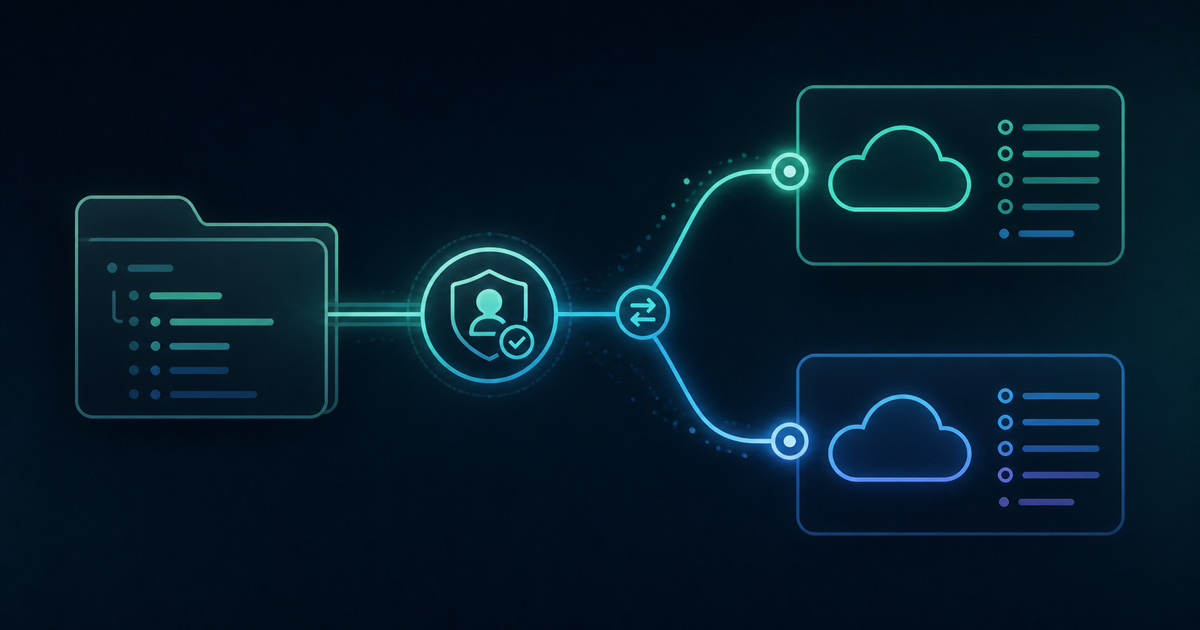
Wrangler auth profiles let you save multiple Cloudflare login profiles and associate each one with a specific project folder.
Cloudflare announced the feature in its official changelog on July 2, 2026.
For example, you can set things up like this:
- My own project → my Cloudflare account
- Client A project → Client A's Cloudflare account
- Client B project → Client B's Cloudflare account
Once the association is configured, Wrangler automatically uses the corresponding account whenever you run commands inside that folder or one of its subfolders.
The easiest way to think about it is: "This folder belongs to this account." Once that rule is in place, you do not have to rely on remembering which account you last logged in to, and you can cut down on repeated wrangler whoami checks.
This feature was added in Wrangler 4.106.0.
If you are running an older version, the wrangler auth command itself will not be available. Start by checking your version:
wrangler --versionIf necessary, update Wrangler to the latest version:
npm install -g wrangler@latestCloudflare's official documentation currently describes auth profiles as a beta feature, so the behavior or commands may change in future versions.
How It Works Behind the Scenes
After setting it up, I was curious about what Wrangler was actually doing behind the scenes, so I looked at the files it created on Windows.
On my system, the profile-related files were stored under:
C:\Users\username\.wrangler\The main files involved are:
| File | Purpose |
|---|---|
profiles\directory-bindings.json |
Maps project folders to profile names |
config\{profile-name}.toml |
Stores the authentication information for each profile |
config\default.toml |
Stores the default authentication used when no profile is associated with the current folder |
For example, directory-bindings.json is very straightforward:
{
  "C:\\Users\\username\\work\\client-a-project": "client-a",
  "C:\\Users\\username\\work\\client-b-project": "client-b"
}
That makes the mechanism easy to understand.
One folder maps to client-a, another folder maps to client-b, and Wrangler uses that mapping to decide which profile to load.
A profile file such as client-a.toml, on the other hand, contains the OAuth authentication information for that profile.
Its structure looks roughly like this:
oauth_token = "(access token)"
refresh_token = "(refresh token)"
expiration_time = "2026-08-25T12:34:56.000Z"
scopes = ["account:read", "user:read", "workers:write", "d1:write", ...]
So, at a high level, the feature works like this:
- Wrangler stores authentication information separately for each account.
- It keeps a mapping between project folders and profile names.
- When you run a Wrangler command, it checks the current folder and automatically loads the matching profile.
Once I looked at the files, the whole system turned out to be simpler than I had expected.
How to Set Up Wrangler Auth Profiles
The setup is fairly simple.
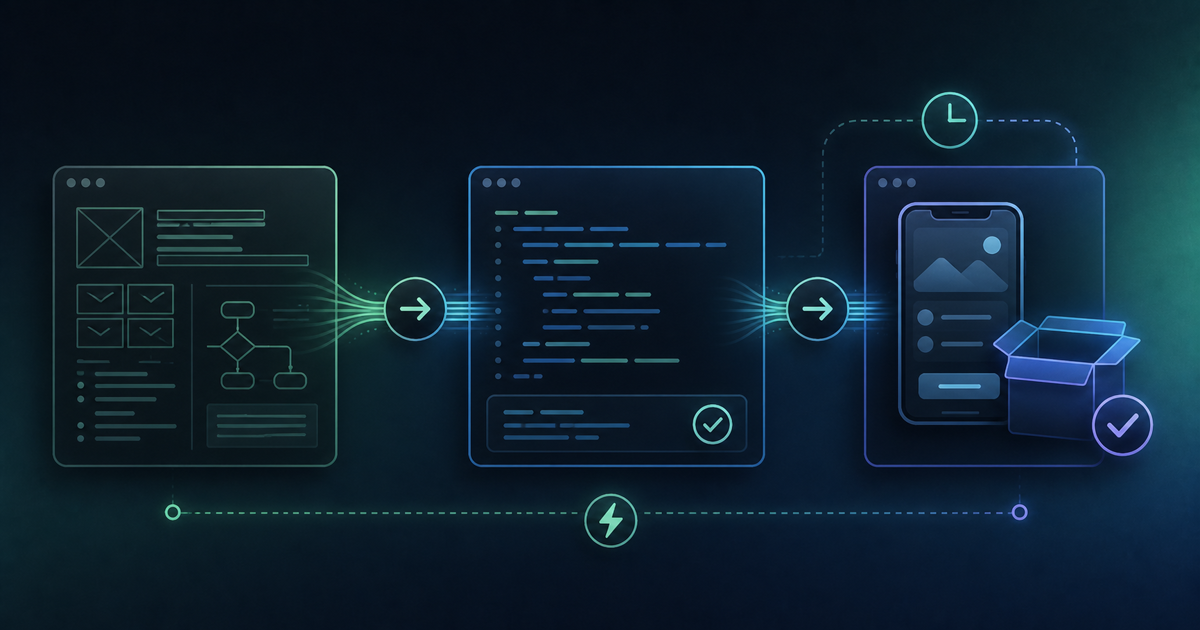
There are three main steps:
- Update Wrangler.
- Create a profile for each Cloudflare account.
- Associate each profile with the appropriate project folder.
1. Update Wrangler
First, update Wrangler to the latest version:
npm install -g wrangler@latestThen check the installed version:
wrangler --versionYou need Wrangler 4.106.0 or later to use auth profiles.
2. Create a Profile for Each Cloudflare Account
Next, create a profile.
For example, to create a profile named client-a for Client A's Cloudflare account, run:
wrangler auth create client-aYour browser will open and display Cloudflare's OAuth authorization screen.
At this point, sign in with the Cloudflare account you want this profile to use.
For a Client A profile, that means signing in to Client A's Cloudflare account.
If you need another profile for a different client, repeat the process:
wrangler auth create client-bYou can name the profiles however you like. In practice, I think using the client name, company name, or project name makes them easier to recognize later.
3. Associate the Profile with a Project Folder
Once the profile exists, associate it with the folder for that project:
wrangler auth activate client-a C:\Users\username\work\client-a-projectAfter that, Wrangler will use the client-a authentication profile when you work inside:
C:\Users\username\work\client-a-projectYou can do the same for another client:
wrangler auth activate client-b C:\Users\username\work\client-b-projectEven if I have three Claude Code sessions open at once—my own website, Client A's project, and Client B's project—I can associate each project folder with the correct Cloudflare account and keep the authentication contexts separated.
Checking That the Account Really Switches
After the setup is complete, move into the project folder and check the active account:
$ cd C:\Users\username\work\client-a-project
$ wrangler whoami

 ⛅️ wrangler 4.125.0
────────────────────
Active profile: client-a
You are logged in with an OAuth token, associated with the email '[email protected]'.
The Active profile: client-a line confirms that Wrangler is using the profile associated with that folder.
I also tried:
wrangler d1 listThe command only showed the D1 databases belonging to that Cloudflare account.
When I moved to a folder associated with a different profile, Wrangler showed the D1 databases for that account instead.
That was the point where it became very clear that the active Cloudflare account really was changing based on the folder.
A Note About API Tokens
There is one important detail to be aware of.
If you have the following environment variable set:
CLOUDFLARE_API_TOKENWrangler will prioritize that token over the folder-based auth profile.
If you configured an auth profile but Wrangler does not seem to be switching accounts, check whether CLOUDFLARE_API_TOKEN is set in your environment.
As I mentioned earlier, I have previously had an API token leak outside the environment where I intended to use it.
I cannot say with certainty whether an AI tool was responsible or whether the token was exposed some other way.
Either way, that experience made me prefer setups where I do not have to create and keep project-specific API tokens unless there is a good reason to do so.
This is not to say that API tokens themselves are unsafe. They are useful and perfectly reasonable when managed correctly.
But because I do a lot of development with AI tools, my preference is simple: if I can avoid keeping sensitive tokens inside a project in the first place, I would rather do that.
For my workflow, signing in through the browser with OAuth and letting Wrangler manage separate auth profiles is a better fit.
That is especially true when I am working with a client's Cloudflare account, where I want to minimize the number of credentials I have to manage manually.
A Note About wrangler login and Related Commands
There is one more detail I noticed in the official documentation: the behavior of the --profile flag.
wrangler login, wrangler logout, and wrangler whoami do not support the --profile flag.
Instead, these commands operate on the profile associated with the folder you are currently in.
So if you are ever unsure which account you are checking, it is worth confirming your current working directory first.
What It Was Like in Actual Use
After associating profiles with my client project folders and using the setup in real work, I found it genuinely useful.
My workflow often involves having several Claude Code projects open at the same time.
My website
  ↓
My Cloudflare account

Client A's system
  ↓
Client A's Cloudflare account
Before auth profiles, whenever I finished working on a client project and went back to one of my own projects, I had to wonder:
"Did I switch the Cloudflare login back?"
It was a small thing, but it created a constant bit of friction.
With auth profiles configured, the Cloudflare account is effectively determined by the project folder I am working in. I no longer have to think about the account switch nearly as often, and moving between multiple Cloudflare accounts feels much safer and smoother.
I still think it is a good idea to run wrangler whoami before an especially important deployment, but no longer having to think about the active account during every routine command is a meaningful improvement.
I also confirmed that projects without a profile association continue to use the default account as before.
So you do not need to configure every folder on your machine. It is perfectly reasonable to associate profiles only with the client projects where you need account separation.
Especially Useful with Claude Code and Other AI Coding Tools
I think this feature is particularly useful with AI coding tools such as Claude Code.
Since I started using AI coding tools more heavily, I have found myself working on multiple development tasks in parallel more often.
When I wrote everything manually, I was more likely to focus on one task, finish a chunk of work, and then move on to the next. With AI, I can hand off one task and work on a different project while the AI is handling something else.
That naturally means I spend more time working on multiple projects from the same PC at the same time.
If Cloudflare authentication is still shared globally across all of those projects, it becomes easier to make a mistake.
Auth profiles solve that problem in a way that fits this kind of parallel development workflow very well: the folder and the account are paired from the beginning.
Conclusion
Wrangler auth profiles let you switch Cloudflare accounts automatically based on the project folder you are working in.
The basic setup is simply to create a profile with:
wrangler auth createand then associate it with a folder using:
wrangler auth activateOnce that is done, you can work normally inside the project folder and Wrangler will automatically use the corresponding Cloudflare account.
I think this feature is especially useful if you use your own Cloudflare account and client accounts on the same PC, work on multiple projects in parallel with tools such as Claude Code, or prefer not to keep API tokens inside individual projects unless necessary.
Mixing up accounts is something I particularly want to avoid when I am working in a client's environment.
The setup is simple enough that, if you regularly use multiple Cloudflare accounts from one PC, Wrangler auth profiles are well worth trying.
Tested: August 25, 2026 / OS: Windows 11 / Wrangler v4.125.0
Primary sources:
Cloudflare changelog: "Work across multiple accounts with Wrangler auth profiles" /
Cloudflare documentation: "Authentication profiles" /
Wrangler CHANGELOG (feature added in 4.106.0)