Table of Contents
- Overview of the issue
- Symptoms
- When it tends to happen
- Suspected cause: the cron job's automatic patrolling
- The cron job itself isn't the "villain"
- Fix 1: turn off the cron job in the initial setup
- Fix 2: keep a regular eye on usage
- Fix 3: use the "diagnose" feature when an error occurs
- Summary: how to live with AI tools
Overview of the issue
Right after setting up Genspark Claw, several people online reported their credits emptying out even though they hadn't given it any instructions yet. I had the same worry myself, so I looked into the cause. The short answer: the culprit was a mechanism called the "cron job." That said, it turned out this isn't simply a bug — it's more a case of a useful feature being misunderstood, a setting you'd regret not knowing about — so let's look at both sides.
Symptoms
- Right after signing up for Claw, no task had been specifically requested
- Within less than a week, the 20,000 credits that had been granted were gone
- A usage history keeps piling up despite no memory of actually using it
- With LINE integration enabled, credits drop every time a message is exchanged
Frequency: medium (reports cluster among users who started using it without reviewing the initial settings) Impact: high (leaving it unnoticed for a few days can cost you a significant amount)
When it tends to happen
This seems most likely to happen if you sign up for Claw and leave the default settings untouched. Conversely, people who checked through the settings screen right after signing up seem less likely to run into this. Also, if you've enabled integration with an outside service like LINE or Discord, the LLM (AI model) fires up every time a message comes in and consumes credits — so the more notifications an account gets, the faster it burns through them.
Suspected cause: the cron job's automatic patrolling
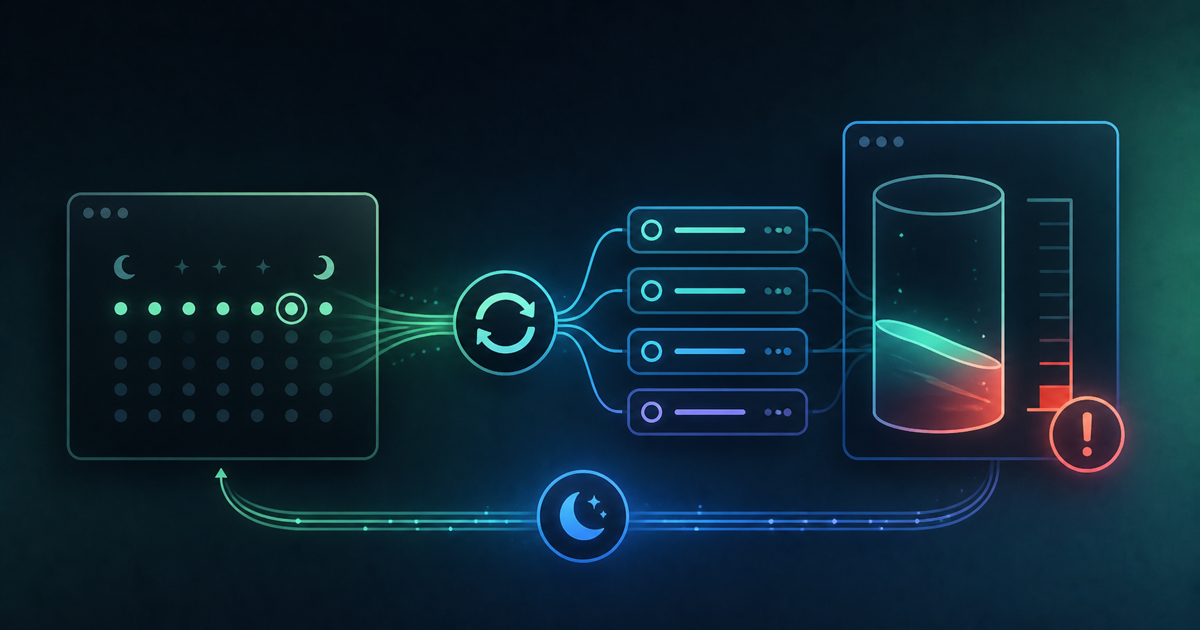
Digging in, it turns out Claw's initial setup has a feature called a "cron job" turned on by default. This has the AI automatically patrol every 30 minutes, checking "is there anything to do?" Even without you thinking you'd given any instructions, the AI was quietly working away in the background the whole time, consuming credits with every pass — that is what was actually happening.
A convenient automation feature ending up unintentionally active, and leading to unexpected cost, felt like a pitfall specific to AI agents. A human subordinate wouldn't normally "act on their own without being told," but an AI agent can have "proactively going looking for work" built in as a feature, which is how this kind of thing happens.
The cron job itself isn't the "villain"
I don't want this to be misread — the cron job feature itself is genuinely useful. Looking into how the setting actually works, it appears to split responsibilities: you write "what to do" in a file called HEARTBEAT.md, and specify "when to do it" via the cron setting. Using this well, you could, say, have it deliver a roundup of AI-related news every morning at 8 a.m. — a genuinely "AI employee"-like automation of a routine task.
That said, according to reports from people who've actually used it, it rarely works exactly as intended on the first setup — it apparently takes some back-and-forth with the AI to fine-tune. Also, continuous-monitoring-style tasks like "keep watching the screen at all times" don't really suit how cron jobs are designed — the basic use case is "run a fixed process at a fixed time." In other words, rather than treating the cron job as an outright villain, the real takeaway is: "turn it on with a clear purpose if you're going to use it," and "turn it off from the start if you're not."
Fix 1: turn off the cron job in the initial setup
If you're about to adopt Claw, open "Settings" → the "Automation" tab right after signing up and check whether the cron job is turned on. If you have no specific plan to use it, turning it off at this stage prevents unintended credit consumption. If you've already adopted it and this rings a bell, it's worth revisiting the settings screen once.
Fix 2: keep a regular eye on usage
Claw's app has a screen showing your current credit usage. Rather than assuming "it's probably fine," making a habit of checking this screen frequently for the first few days after adoption, watching for anything unusual in the pace of consumption, is a reassuring habit to build. It also helps to set up error notifications for when an automated workflow fails, so you notice unexpected behavior sooner.
Fix 3: use the "diagnose" feature when an error occurs
While using Claw, errors can crop up around the time you add a new feature or switch AI models. In that case, take a screenshot of the error screen and paste it into the "diagnose" button under "Settings" — the AI will analyze the cause and attempt an automatic fix. It's worth trying this self-diagnosis feature before reaching out to support.
Summary: how to live with AI tools
Before adopting Genspark Claw, it's worth confirming these three things up front:
- Check the cron job's status under "Settings → Automation," and turn it off from the start if you won't be using it
- If you do plan to use it, turn it on only after clearly defining your purpose, combining HEARTBEAT.md with the cron setting
- Keep an eye on usage for the first few days after adoption, and set up error notifications too
AI agents come with the convenience of "working on their own" — but also the risk of "acting on their own and consuming credits." A few minutes of checking at setup time should save you unnecessary cost down the road. Hopefully this helps anyone else feeling the same worry.