When you need to create a presentation, Microsoft PowerPoint is probably one of the first tools that comes to mind.
But what if you only need to make a presentation a few times a year? Paying for PowerPoint just for occasional use might not be worth it.
That's where Genspark AI Slides comes in.
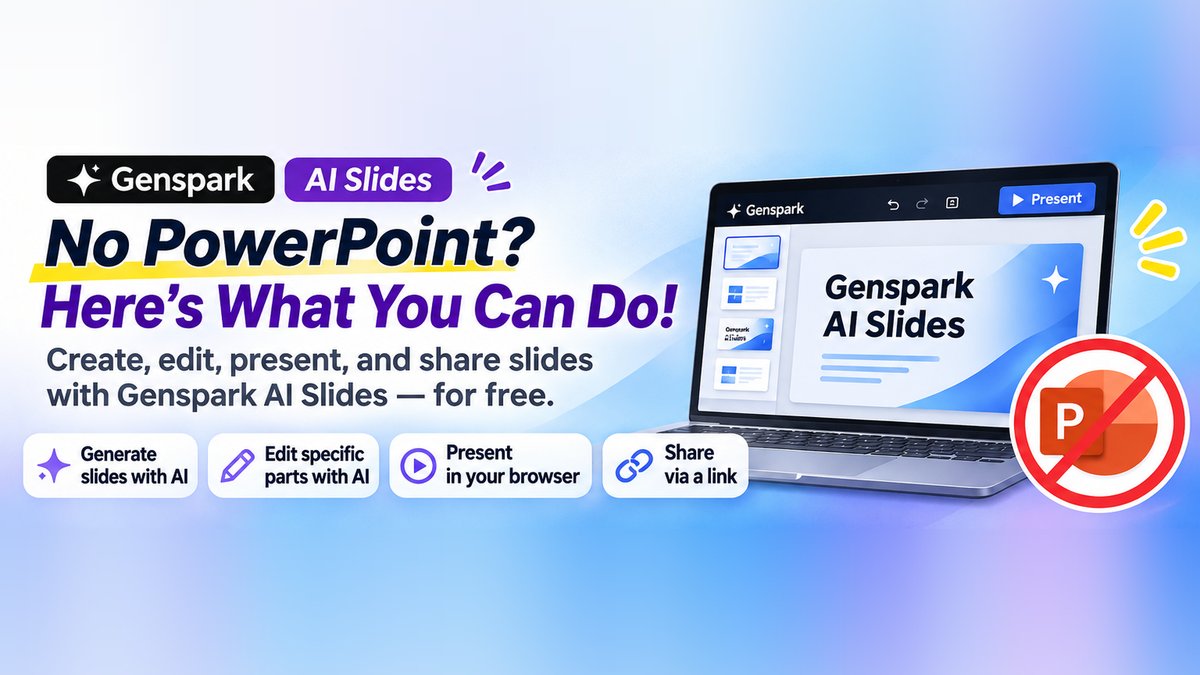
With Genspark, you can provide the content you want to present, and AI will automatically create slides, organize the information, and design the layout.
You can also edit the generated slides, deliver presentations directly in your browser, and share them with others through a link.
And the interesting part is that you can do all of this on Genspark's free plan, within the available credit limits.
Of course, Genspark doesn't completely replace PowerPoint. In my experience, PowerPoint is still easier to use for precise text positioning and detailed layout adjustments.
However, Genspark has some advantages that are difficult to replicate with traditional PowerPoint editing. For example, you can select an element or circle an area of a slide and simply tell AI what you want changed.
In this article, I'll walk through how to create, edit, present, and share slides using Genspark's free features, based on a presentation I actually created.
This article walks through a real presentation I created with Genspark AI Slides. If you'd like to see the result first, you can check it out here.
The short version
- Genspark's AI Slides feature turns written content into a full presentation — structure and design included — without opening PowerPoint
- Editing specific parts (by selecting elements or circling an area), presenting in your browser, and sharing via a link are all available on the free plan's credit allowance
- Exporting to PowerPoint (PPTX) or PDF requires a paid plan — the free plan covers creating, presenting, and sharing, not downloading a file
Table of Contents
- What Can You Do with Genspark AI Slides?
- 1. Open AI Slides in Genspark
- 2. Upload Your Content and Generate a Presentation
- 3. Edit Slides with AI: One of Genspark's Biggest Advantages
- 4. Present Directly in Your Browser Without PowerPoint
- 5. Share Your Slides for Free with a Link
- 6. What Are the Limitations of Genspark's Free Plan?
- 7. Genspark vs PowerPoint: Which Is More Convenient?

I thought you needed PowerPoint to make a presentation at all.

Turns out Genspark's AI Slides covers the whole thing — creating, presenting, and sharing — on the free plan.
Now I'm curious — how does it actually work?
I just made a presentation with it, so let me walk you through exactly what I did.
What Can You Do with Genspark AI Slides?
Genspark AI Slides is an AI-powered presentation creation tool that can generate slides from written instructions and reference materials.
For example, you can prepare the content of your presentation in a text file or Word document, upload it, and ask Genspark to turn it into a presentation.
The AI will organize the material, create slide layouts, and apply visual designs.
You can also describe the style you want or upload an existing PowerPoint presentation as a design reference.
Once the slides are generated, you can review them directly in Genspark, request changes through AI, or make manual edits.
The overall workflow is straightforward:
- Open AI Slides in Genspark.
- Upload your presentation content and generate slides.
- Edit the slides using AI or manual tools.
- Present directly in your browser or share the slides through a link.
You don't need to download a PowerPoint file to complete this process.
1. Open AI Slides in Genspark
First, visit the Genspark official website.
From the home screen, select "Slides" or open the "All" menu and choose "AI Slides."
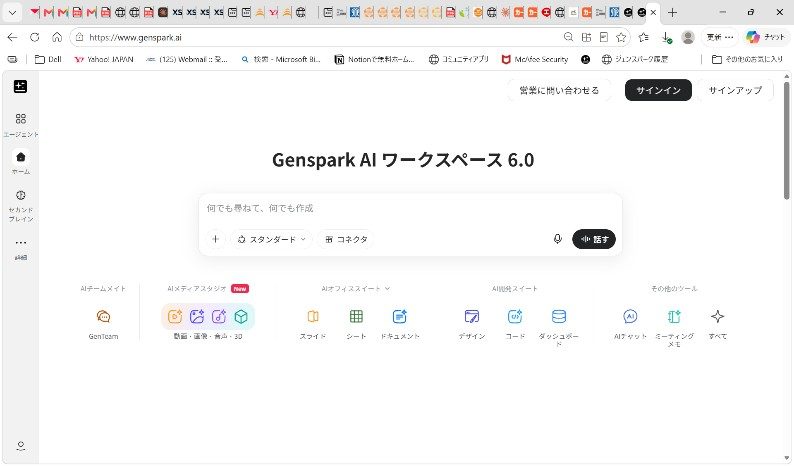
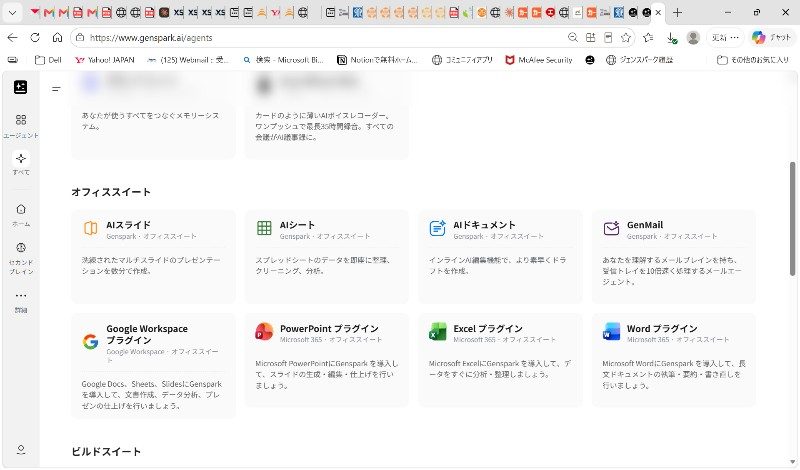
This opens the AI Slides workspace, where you'll find a chat input area for entering your instructions.
You can start creating a presentation by simply describing what you want.
2. Upload Your Content and Generate a Presentation
For this example, I created a presentation explaining how to use Genspark to create presentation materials.
I prepared the presentation content in a text file and uploaded it along with an existing PowerPoint file to use as a design reference.
My prompt was surprisingly simple:
"Please create a presentation using the content of the attached text file and the design of the attached PowerPoint file."
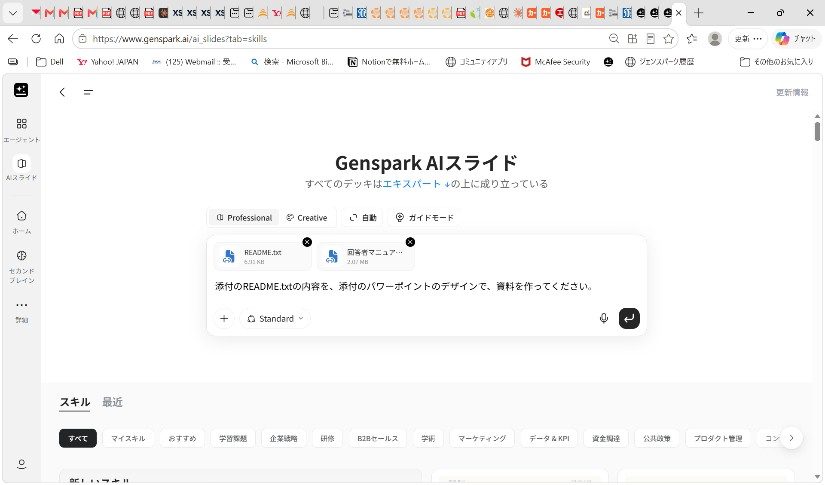
You can attach files using the "+" button in the chat input area.
The reference PowerPoint file is optional. If you don't have an existing design, Genspark can generate one based on your instructions.
For example, you could ask for:
- A professional business presentation with a blue color scheme
- A presentation with minimal text and more diagrams
- A modern design with large headings and simple illustrations
Once you've entered your instructions, Genspark starts generating the slides.
The time required depends on the content, number of slides, and processing workload. In the instructional presentation I created, I used approximately 15 minutes as a rough guide.
When the process finishes, the generated slides appear in the Genspark workspace.
Prepare Your Content Before Asking AI to Create Slides
Although Genspark can organize your presentation automatically, I recommend preparing the key points yourself before generating slides.
If you leave everything to AI, it may organize information differently from what you intended.
At a minimum, I think it's worth deciding what you want to communicate, which points are most important, and what order the audience should hear them in.
You should also check important numbers, names, and facts after generation.
AI is helpful for turning information into a presentation, but the accuracy of the final content still matters.
3. Edit Slides with AI: One of Genspark's Biggest Advantages
Once your slides are ready, you'll probably want to make some adjustments.
This is where Genspark becomes particularly interesting.
In traditional PowerPoint editing, you normally select text, images, or shapes and manually change their appearance.
Genspark offers another approach: select the part you want to change and describe the modification in natural language.
There are three main ways to edit your slides.
Method 1: Select an Element and Ask AI to Modify It
You can select a specific element on a slide and ask AI to change it.
For example, you might select a title and say:
"Make this title larger."
Or select an image and request:
"Make the background brighter."
Instead of redesigning the entire slide, you can focus on the specific element you want to improve.
This is especially convenient when you know what needs changing but don't want to manually adjust the design.
Method 2: Circle an Area and Tell AI What to Change
This is one of the most interesting features in Genspark.
You can use the drawing tools to circle an area of a slide and tell AI what you want to change.
For example, if a section contains text that is too small, you can circle it and write:
"Make the text larger."
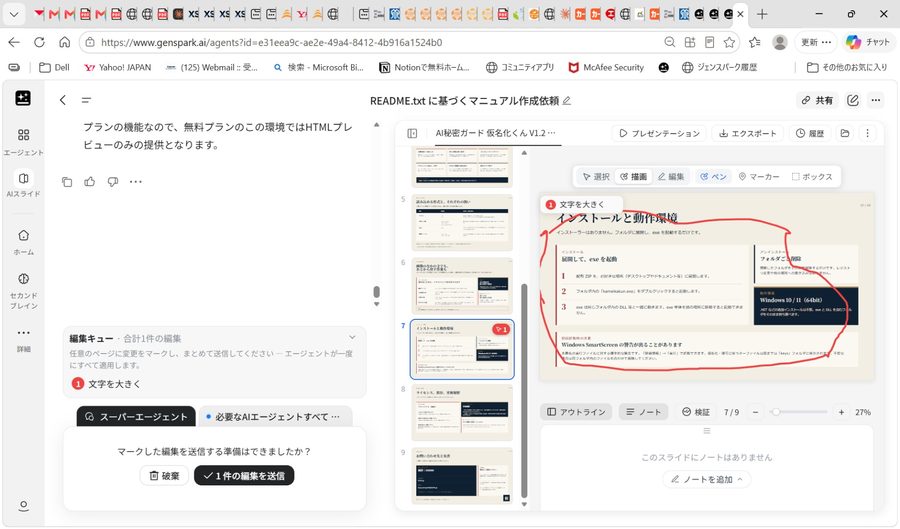
In the example shown, I circled the section I wanted to modify and added an instruction to enlarge the text.
The requested change appears in the editing queue. You can also mark multiple areas and submit the changes together.
I find this approach particularly useful because it allows you to identify exactly which part of the slide needs attention.
This kind of visual AI editing is a major advantage of Genspark compared with conventional PowerPoint editing.
AI doesn't always produce exactly the result you expect. Still review the modified slide, especially when changes affect text sizes, spacing, or the overall layout.
Method 3: Make Manual Adjustments
Genspark also allows you to make manual edits without asking AI.
For small changes, such as adjusting text or moving an element, manual editing can sometimes be faster than writing an AI instruction.
However, this is where I still prefer PowerPoint.
When making detailed layout adjustments or working with many text boxes and shapes, I find PowerPoint more comfortable and efficient.
Genspark's strength is not necessarily its manual editing interface.
Its advantage is that you can delegate certain editing tasks to AI.
My preferred approach is to use AI for larger changes and manual editing for smaller adjustments.
Manual edits do not consume AI generation credits, while AI-powered generation and revisions may require credits.
4. Present Directly in Your Browser Without PowerPoint
After creating and editing your slides, you can use them for an actual presentation without exporting them to PowerPoint.
Genspark includes a presentation mode that can be launched directly from the slide workspace.
Simply click the "Presentation" button to display your slides in presentation mode.
You can then use your computer with a projector or share your screen during an online meeting.
Genspark also offers presenter-oriented features, including speaker notes and ways to view upcoming slides.
The important point is that you don't need PowerPoint installed on your PC to deliver the presentation.
As long as you can access Genspark through a compatible browser with an internet connection, you can present your slides.
This makes it particularly useful for people who only occasionally need to give presentations.
5. Share Your Slides for Free with a Link
Genspark also lets you share completed presentations without downloading them as files.
Instead of attaching a PowerPoint file to an email, you can simply send a link.
Here's how:
- Click "Share" in the upper-right corner of the Genspark workspace.
- Choose "Slides only."
- Under general access, select "Anyone with the link."
- Copy the sharing link and send it to your audience.
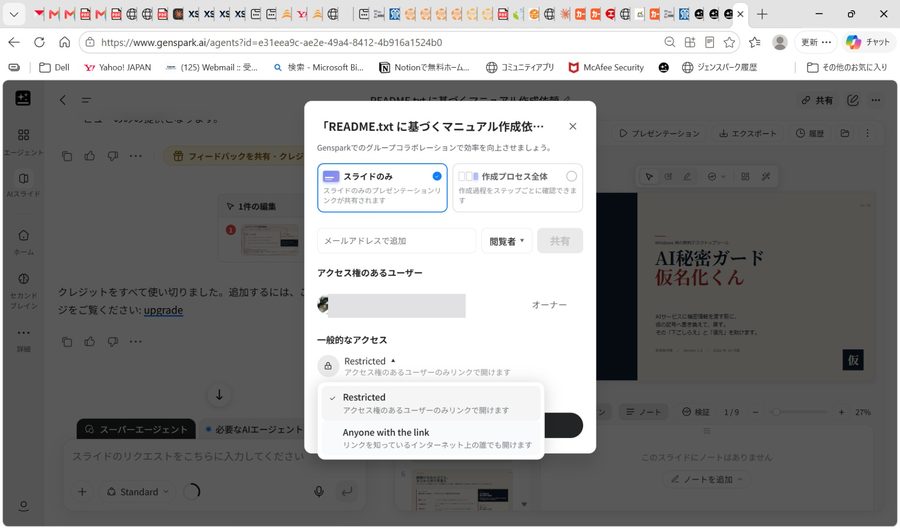
Genspark provides different sharing options.
You can share just the finished presentation or share the entire project, including its creation process.
If you only want someone to view the completed slides, selecting "Slides only" is the better choice.
This is convenient when you want colleagues or clients to review a presentation before a meeting.
However, pay attention to the access settings.
If you select "Anyone with the link," anyone who obtains that URL may be able to view the presentation. Be careful when sharing confidential business information.
6. What Are the Limitations of Genspark's Free Plan?
Genspark provides a useful set of free features, but there are some important limitations.
Free AI Credits Are Limited
Genspark's free plan generally provides 100 credits per day, subject to the service's free-credit eligibility and lifetime allocation limits.
The daily allocation does not necessarily continue indefinitely. Once the lifetime free-credit limit has been reached, daily replenishment may stop.
AI slide generation consumes credits, and the amount depends on the generation mode and the work being performed.
If you repeatedly regenerate slides or request AI-powered revisions, you may run out of credits during a project.
Fortunately, previously created slides can remain saved in your workspace.
If additional credits become available, you can return to the same project and continue working.
For free users, I recommend preparing the presentation content carefully before starting. This helps reduce unnecessary regeneration and credit consumption.
Exporting to PowerPoint or PDF Requires a Paid Plan
This is probably the most important limitation to understand.
As of November 2026, Genspark requires a paid plan to export AI Slides presentations as PowerPoint (PPTX), PDF, or Google Slides files.
You can create, edit, present, and share slides through the browser on the free plan, within its usage limits.
But that doesn't mean you can download a PowerPoint file for free.
Creating and presenting slides for free is different from exporting a free PPTX file.
If a client requires a PowerPoint file as the final deliverable, you may need a paid Genspark plan.
Similarly, if you need to present completely offline, relying only on Genspark's browser-based presentation mode may not be suitable.
These are important points to consider before deciding whether Genspark can replace your usual presentation workflow.
7. Genspark vs PowerPoint: Which Is More Convenient?
After using Genspark to create presentations, I think both tools have their strengths.
| Task | Genspark AI Slides | PowerPoint |
|---|---|---|
| Planning presentation structure | AI can organize the content | Usually planned manually |
| Creating an initial design | AI-generated layouts | Templates and manual design |
| Editing selected areas with AI | Select or circle an area and give instructions | Traditionally handled through manual editing |
| Precise layout adjustments | Possible, but less comfortable in my experience | Easier for detailed adjustments |
| Presenting in a browser | Supported | Also possible with PowerPoint for the web |
| Exporting PPTX on the free plan | Not available | Depends on the PowerPoint version and plan |
Note: Microsoft also offers AI features through Copilot. This comparison focuses mainly on conventional PowerPoint editing versus Genspark's built-in AI workflow.
For me, Genspark is particularly useful at the beginning of the presentation creation process.
Instead of opening a blank PowerPoint presentation and designing everything from scratch, I can give Genspark the content and let AI create a reasonable first version.
I also appreciate being able to select an element or circle a section and ask AI to modify it.
On the other hand, when I need to fine-tune a complicated layout, PowerPoint often feels easier to use.
If you already have PowerPoint, one possible workflow is to generate the first version in Genspark and finish it in PowerPoint.
However, remember that exporting the slides as a PPTX file from Genspark requires a paid plan.
For someone who doesn't own PowerPoint and only needs to create occasional presentations, Genspark's free browser-based workflow may be enough.
If you want to see how Genspark works directly inside PowerPoint instead, I've also covered the Genspark for PowerPoint add-in in a separate article — worth a look alongside AI Slides to see which fits your workflow better.
I wasn't expecting this much to be possible for free.
Same here. You need a paid plan to export PPTX, but creating, presenting, and sharing is genuinely usable on the free tier.
Conclusion: You Can Do More Than You Might Expect Without PowerPoint
Genspark AI Slides lets you create, edit, present, and share presentations using its free features, within the available credit limits.
Its AI-powered editing features are particularly interesting.
You can generate a presentation from written content, then select individual elements or circle areas and ask AI to make changes.
That can save time compared with manually designing and adjusting every slide.
Of course, PowerPoint still has advantages, especially for detailed editing and professional workflows that require precise control.
I wouldn't claim that Genspark makes PowerPoint completely unnecessary.
However, if you only need to prepare a presentation occasionally, Genspark may be more than enough.
Even without PowerPoint, you can ask AI to create your slides, refine them, and present them directly in your browser.
Considering how much of this is available for free, I think Genspark is worth trying.