Table of Contents
- Overview
- Why it feels easier than Cursor
- Pitfall 1: asking for too many features at once
- Pitfall 2: summarizing the error in your own words
- Pitfall 3: stacking up instructions without checking in between
- Pitfall 4: neglecting to save or version things
- Bonus tip: a rough app prototype from a single image in 3 minutes
- Bonus tip: manage your source code on GitHub
- Security points worth checking before you publish
- Summary
Overview
Genspark AI Developer has been getting attention as a tool that lets you "build an app with no programming knowledge required." Having written code for close to 20 years myself, I'm curious how far this kind of no-code tool really holds up for non-engineers in practice. Looking at cases where non-engineer users have actually taken a swing at building an app, a handful of familiar stumbling patterns show up alongside the convenience. Based on those cases, here are four points where non-engineers tend to trip up, along with ways around each one.
Why it feels easier than Cursor
AI Developer often gets compared to coding assistants like Cursor, but the biggest difference is that no environment setup is required at all. Because everything runs in the browser, you avoid the classic beginner wall of getting stuck on setup errors before you've even started. This "zero environment setup" quality appears to lower the psychological barrier considerably for non-engineers.
Pitfall 1: asking for too many features at once
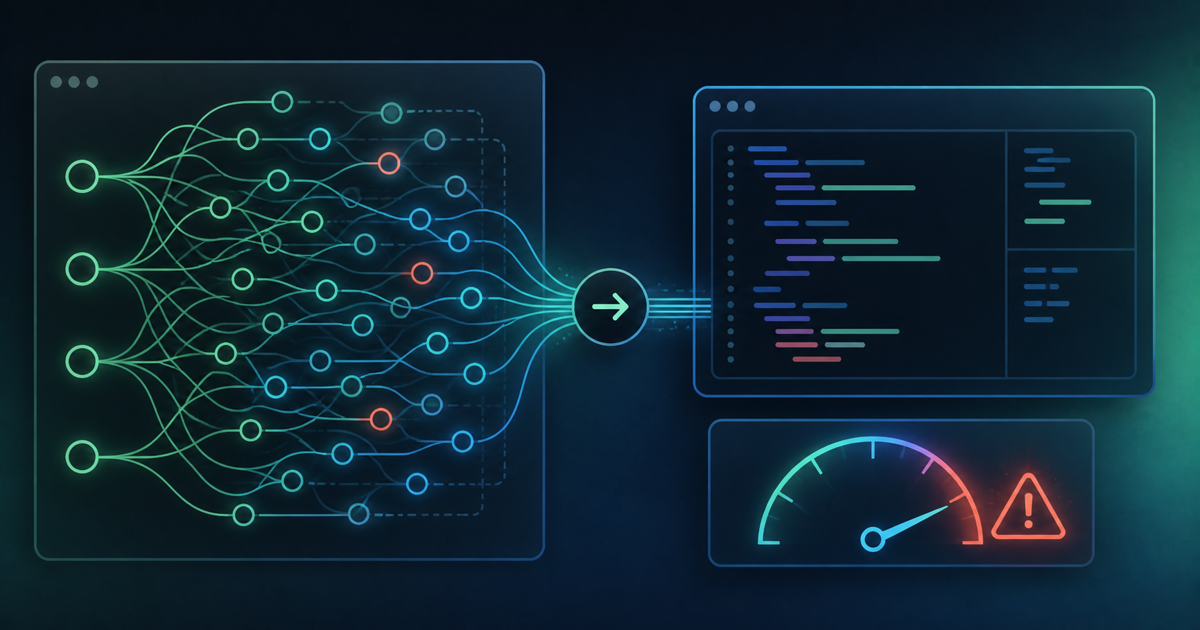
One common failure among non-engineers is throwing a pile of requests at the AI all at once — "build login, payments, and notifications, all together." The AI tends to lose its balance when trying to wire in several features simultaneously, and errors become more likely as a result.
Fix: Implementing one feature at a time, checking that it works before moving on, ends up being the faster path to a finished product.
Pitfall 2: summarizing the error in your own words
When an error appears, trying to summarize it in your own words before reporting it back can actually make the root cause harder to pin down.
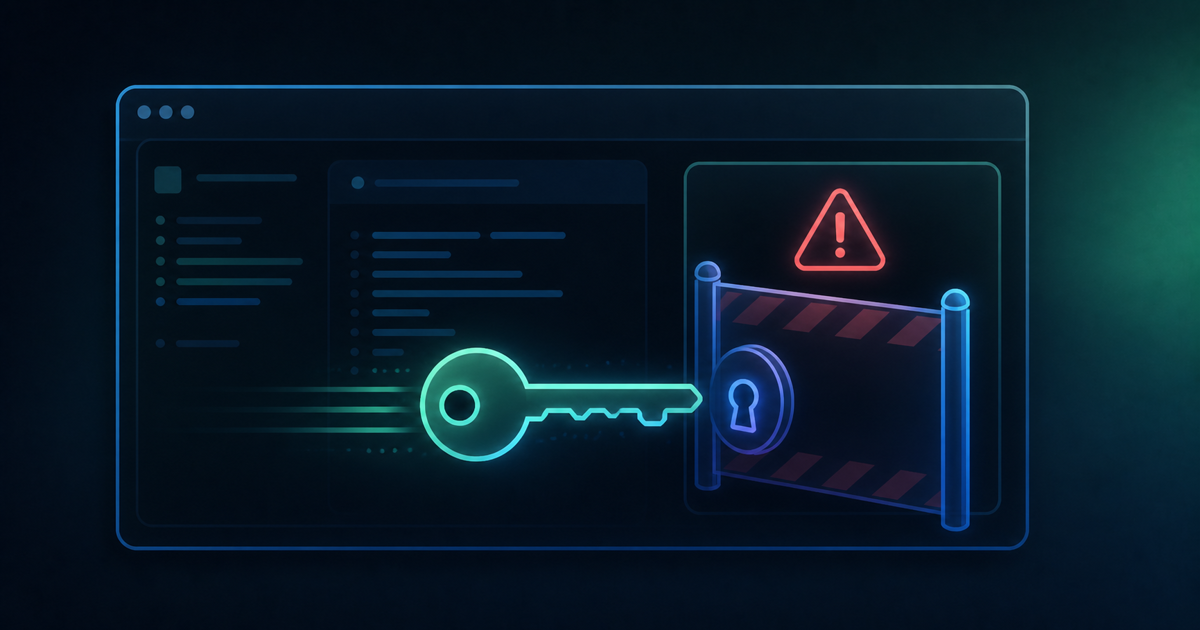
Fix: The most efficient approach is to copy the entire error message exactly as shown, paste it in full without summarizing, and simply say "fix this error." The AI infers the cause from the fine details of the error text, so handing over the information without trimming it matters.
It also helps that visual glitches — how the screen is breaking, or where it's getting stuck — are often easier to convey with a screenshot than a written description. In Genspark, clicking into the chat window and pressing Ctrl+V pastes an image straight from the clipboard. Not having to save and then upload the image separately is a real convenience.
Pitfall 3: stacking up instructions without checking in between
Trying to push through several steps in one go can leave you unsure where things went wrong partway through.
Fix: Implementing one feature, checking it in the preview screen, and only then moving to the next instruction — repeating that cycle — ends up producing far fewer errors.
Pitfall 4: neglecting to save or version things
As you keep asking the AI for one fix after another, you can end up in a state where you can't get back to "the version from a minute ago that was actually better."
Fix: Saving frequently and keeping a record of versions gives you the peace of mind that, even if things head in a strange direction, you can always roll back to an earlier state.
Bonus tip: a rough app prototype from a single image in 3 minutes
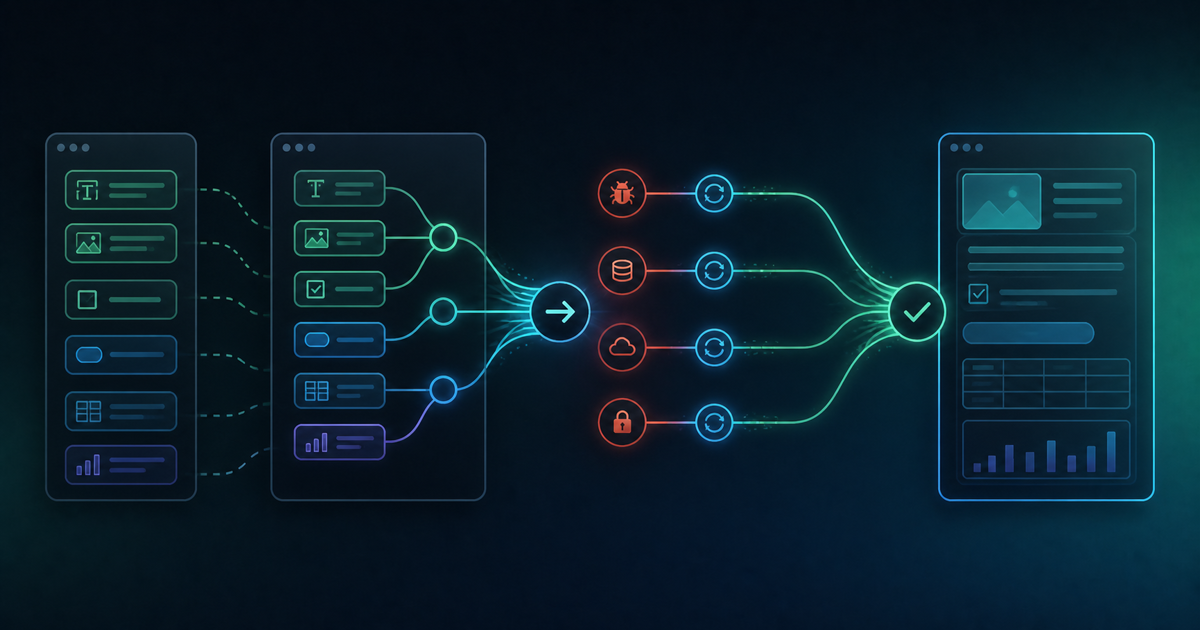
As a more advanced technique, there are reports of uploading a single image of what you want the screen to look like (a screenshot or even a rough hand-drawn sketch works) and simply saying "build an app with a screen like this image that does this." A working prototype can reportedly be generated in around 3 minutes. This "image-driven prompting" seems especially effective for anyone who finds it hard to put the picture in their head into words.
Bonus tip: manage your source code on GitHub
Taking the idea of saving and version control a step further, you can also manage the generated source code on GitHub. Rather than relying solely on saving inside Genspark's own interface, keeping a change history through commits makes it much easier to later check "how far back was this working," and makes any rollback go more smoothly if something goes wrong. It might feel like a slightly higher bar for non-engineers, but putting code built with AI Developer onto GitHub isn't actually a difficult task if you just ask the AI to walk you through the steps.
Security points worth checking before you publish
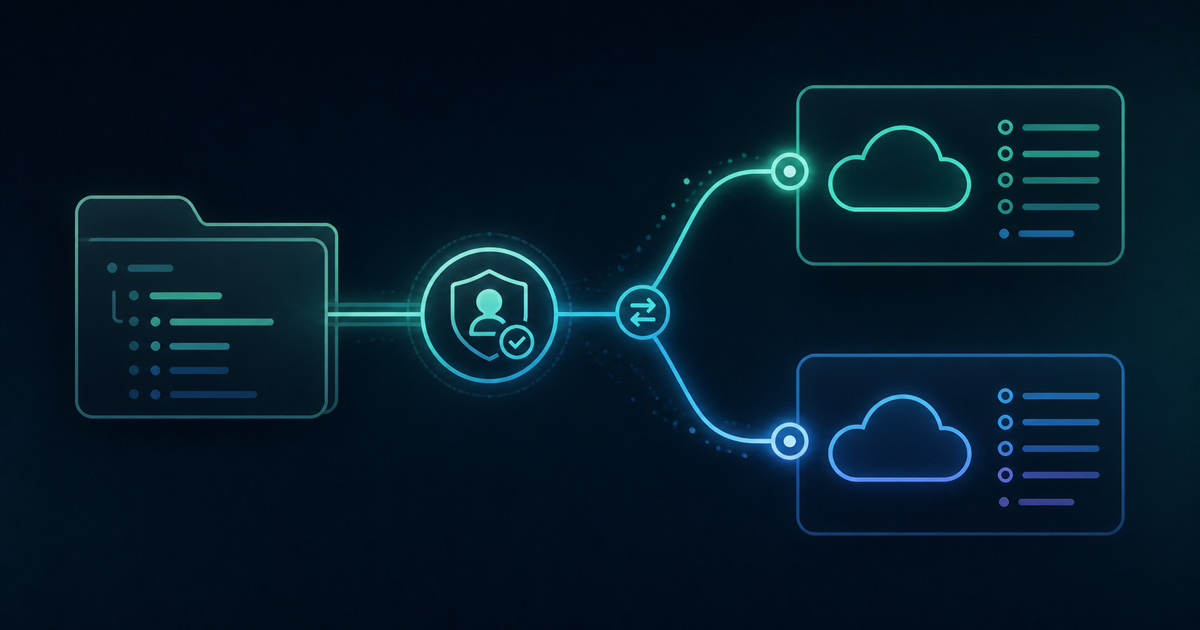
Before making an app you've built available internally or externally, there are a few things worth checking. First, sensitive personal information — addresses, phone numbers, credit card details — or a client's confidential information shouldn't be typed directly into the AI and baked into the app. Including confidential information in an exchange with the AI carries some, however small, risk of it leaking out unintentionally.
It's also worth noting that Genspark's data reportedly lives on Microsoft Azure's cloud infrastructure, though the specific server locations don't appear to be publicly disclosed. That's not something to worry much about for personal use, but if a company is adopting it seriously, it's reassuring to confirm data storage location and access-permission handling in advance.
Summary
The knack for non-engineers using Genspark AI Developer well comes down to these four points:
- Don't ask for multiple features at once — implement them one at a time, in stages
- Paste error messages in full, without summarizing
- Check the preview after each generation before moving to the next step
- Save and keep version records frequently
With no environment-setup wall to climb, it's a tool that makes it fairly easy for even someone with zero programming experience to "learn by building." Not aiming for perfection from the start, and instead making small attempts and checking along the way, ends up being the fastest route in the end.
Related Articles
This is an affiliate link. The publisher may receive a commission if you subscribe through it.