

Table of Contents
What Is Genspark for Word?
I tried Genspark for Word, a new feature introduced in Genspark 4.0. Following the PowerPoint and Excel add-ins, Genspark AI is now available as a Word add-in too — acting as an AI writing assistant for drafting, editing, formatting, and research directly inside Microsoft Word.
Personally, while I use PowerPoint and Excel regularly, I've never been much of a Word user. Honestly, Word has so many features that I can never remember where things are, which always made it feel a bit unwieldy to use.
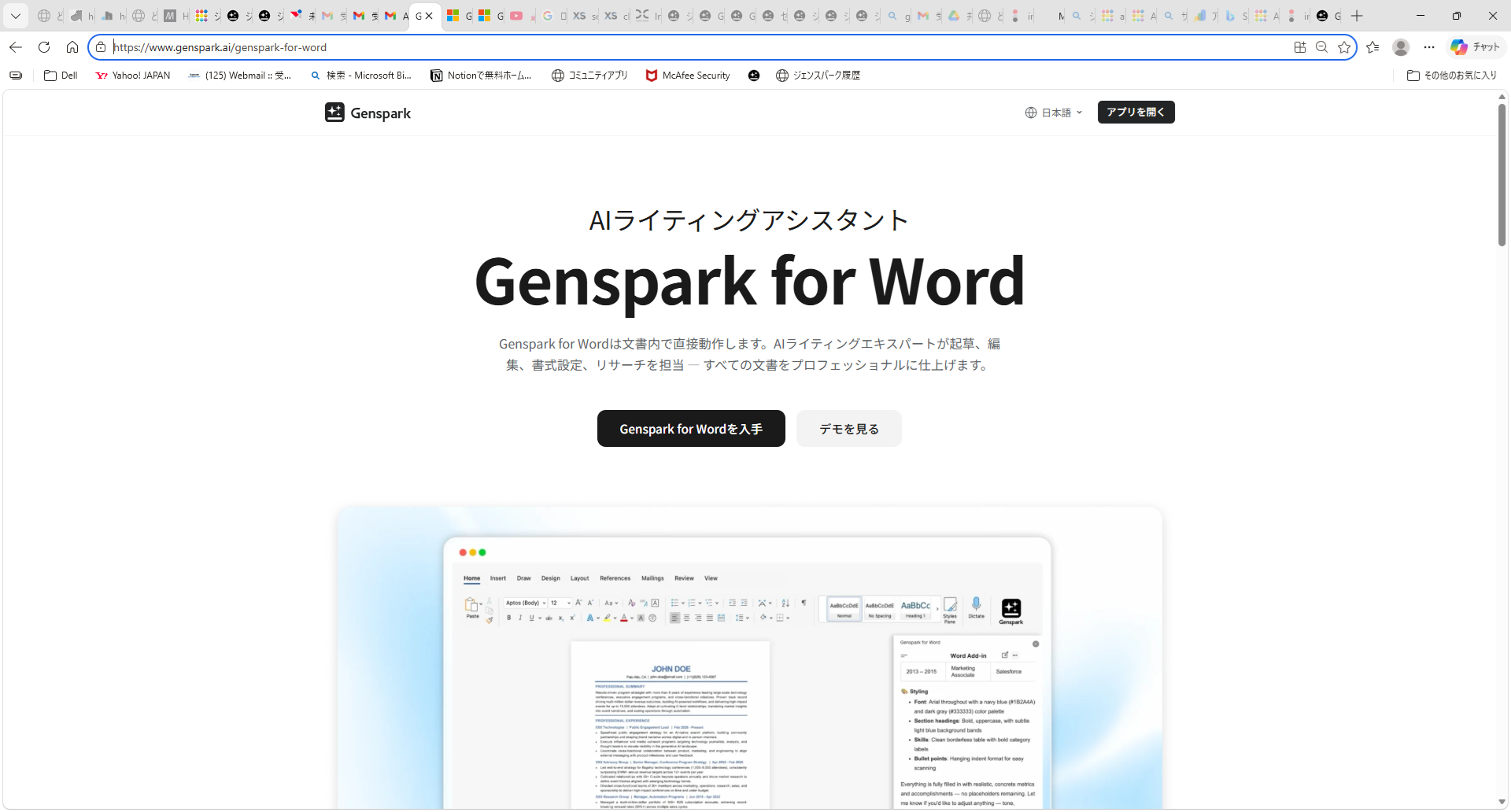
Install it here: Genspark for Word Install Page
The Add-in's Appeal: Give Instructions Naturally
What makes the Word add-in interesting is the ability to give casual, natural-language instructions like "tighten the spacing a bit" or "make this paragraph more formal."
Word's ribbon is packed with features, and it's easy to find yourself thinking "how do I change the line spacing again?" With the add-in, you can skip the menu hunting and just describe what you want.
How to Install
The installation process is the same as the PowerPoint and Excel add-ins. Install from Microsoft AppSource, then sign in with both your Microsoft account and Genspark account.
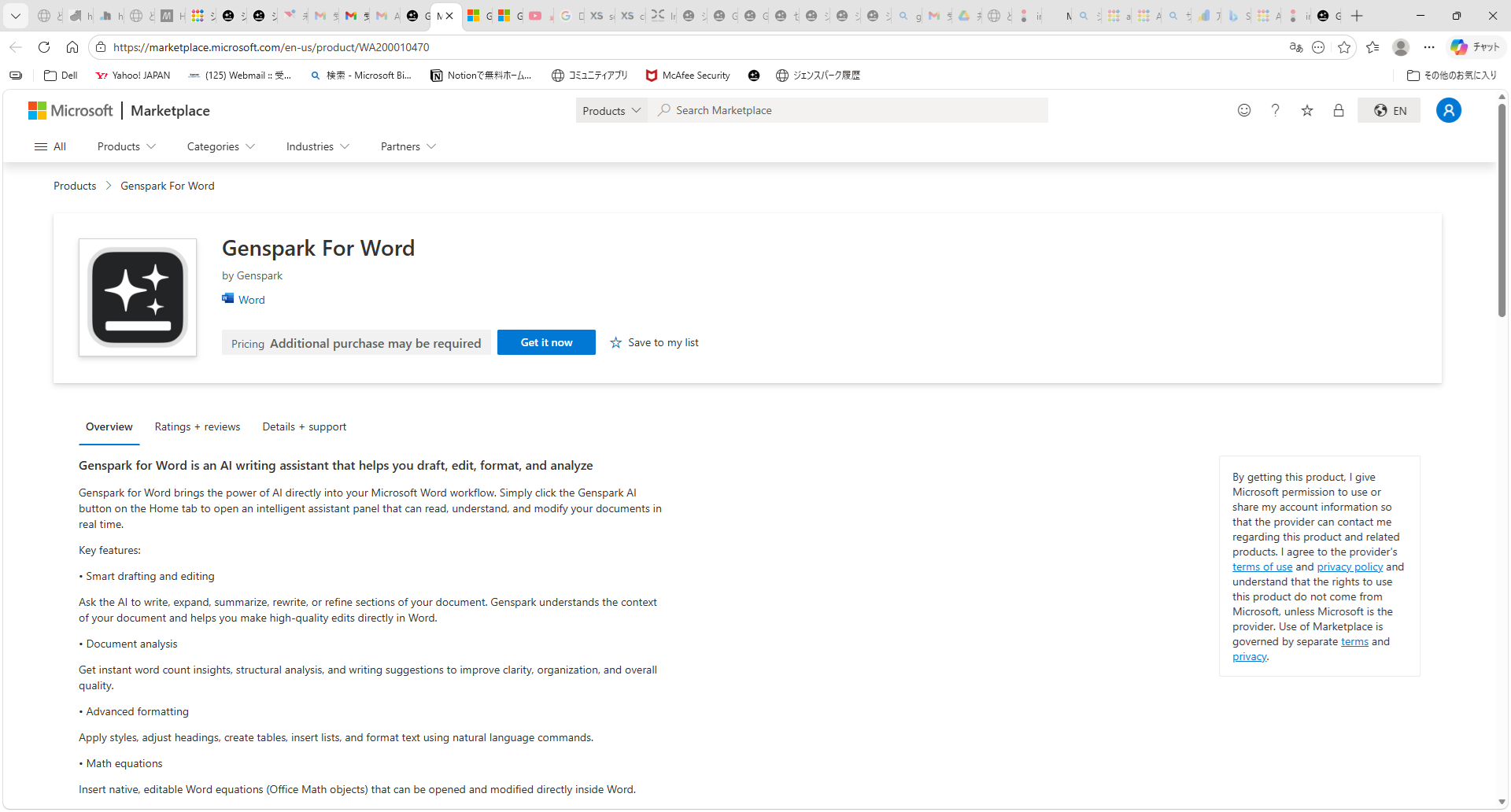
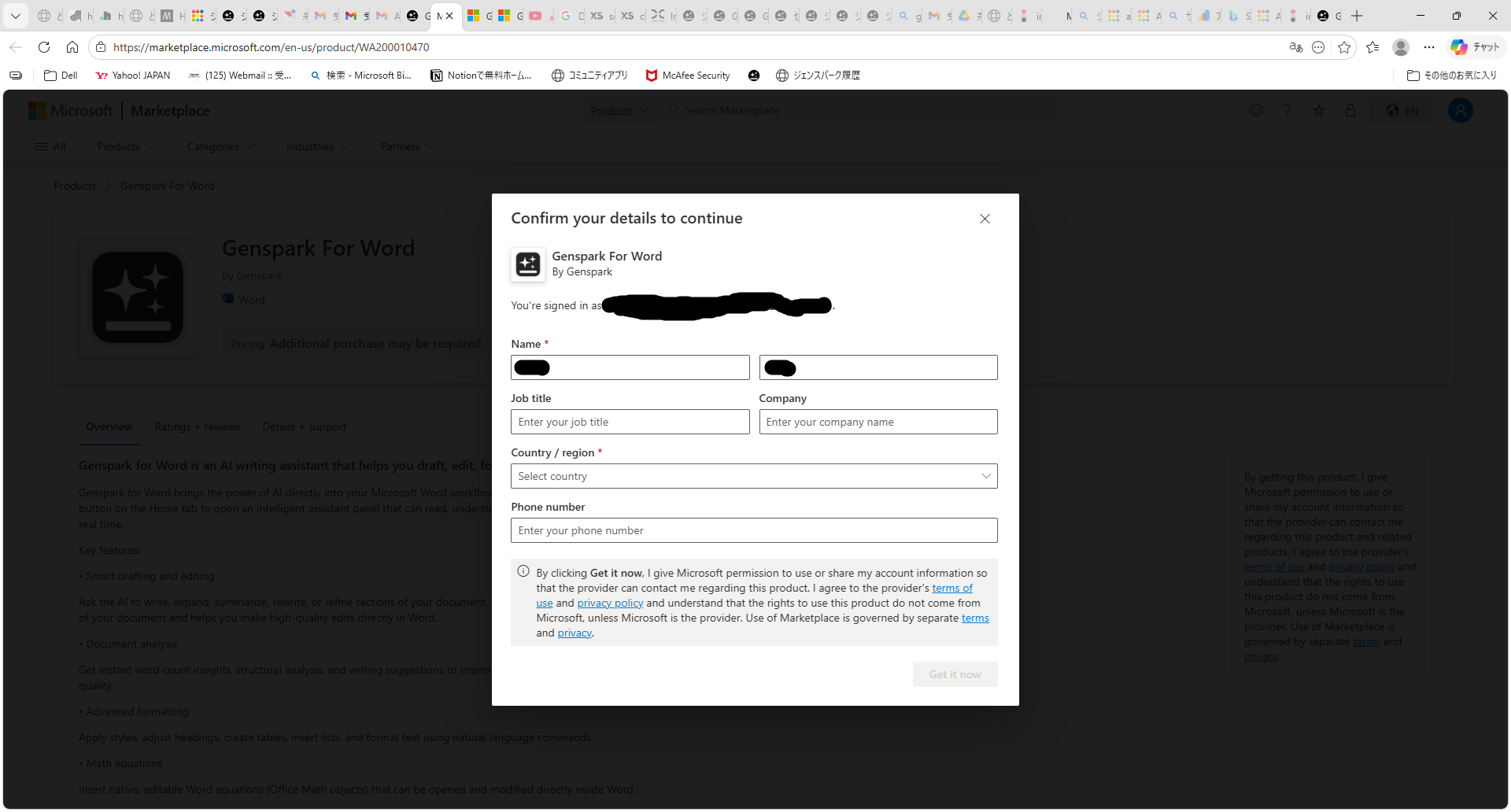
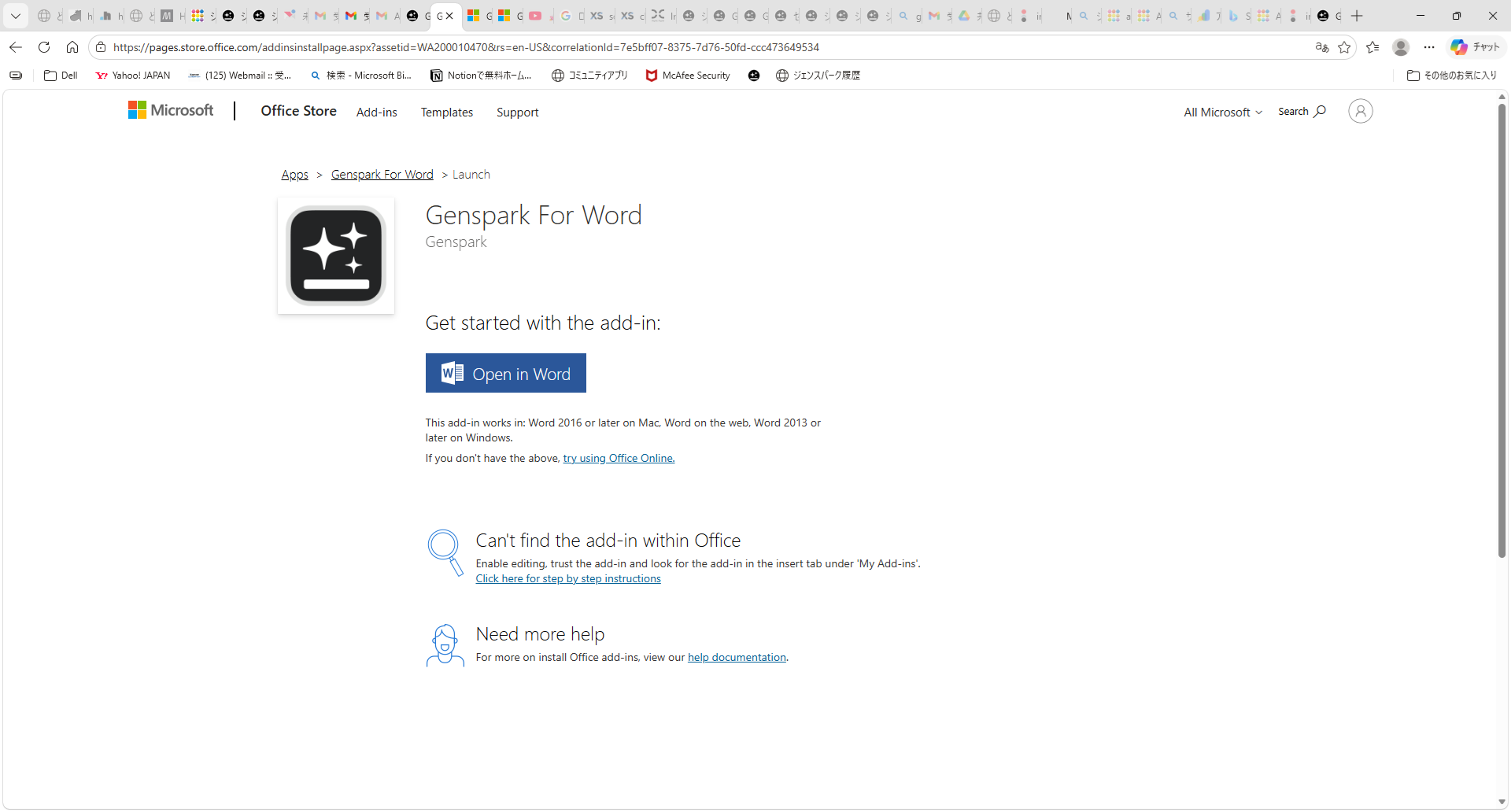
① Click "Get it now" on AppSource → ② Sign in to Microsoft account and confirm details → ③ Click "Open in Word" → ④ Launch the add-in from the "Genspark" button in the Word ribbon → ⑤ Sign in to your Genspark account
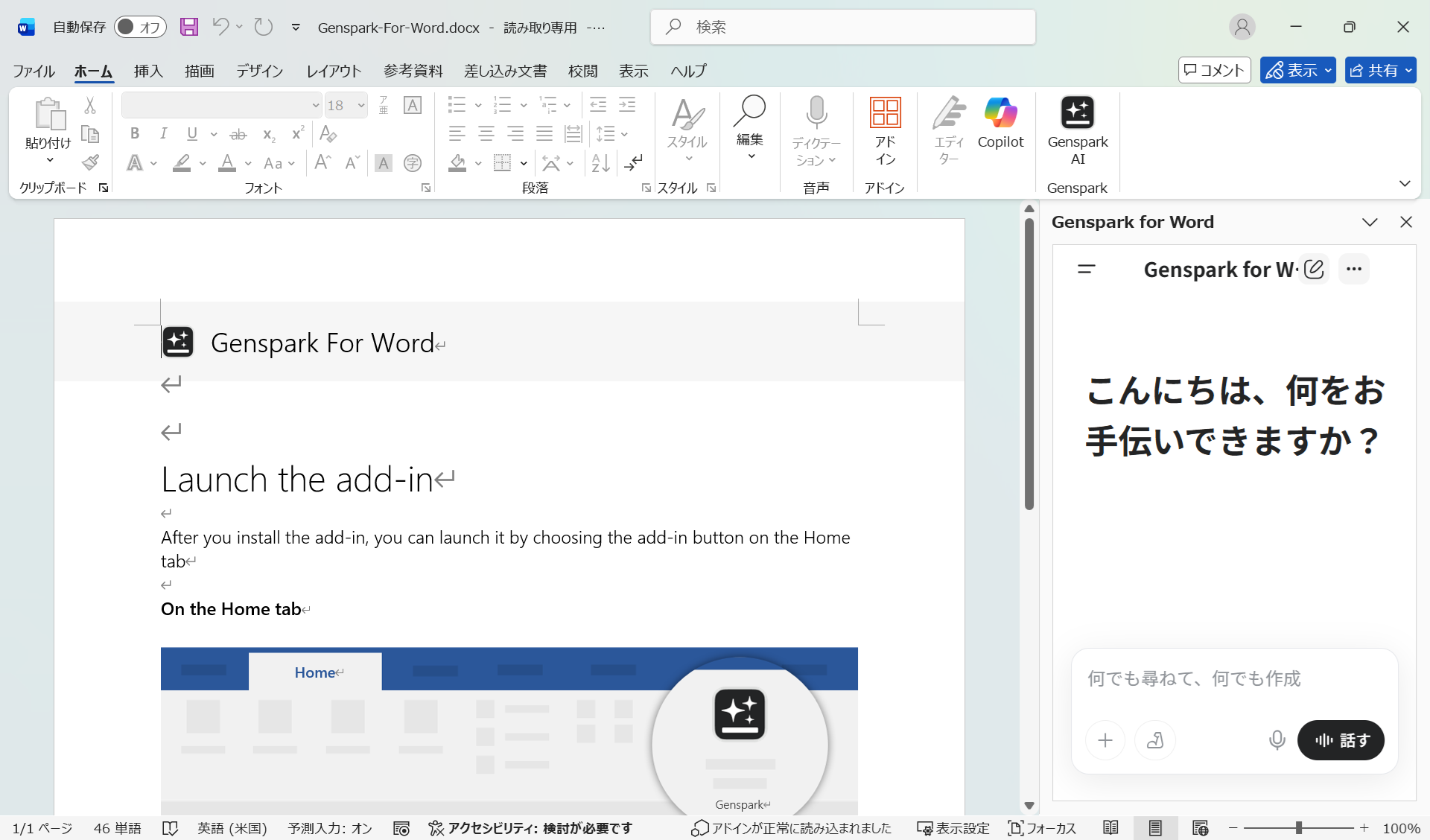
Once signed in, the right panel displays a greeting and you can start giving instructions immediately.
Hands-On: What I Tried
I launched Word with the Genspark add-in active and ran a quick test. I had a website specification document in Markdown format on hand, and gave the following instruction:
"Please format this neatly into a Word document."
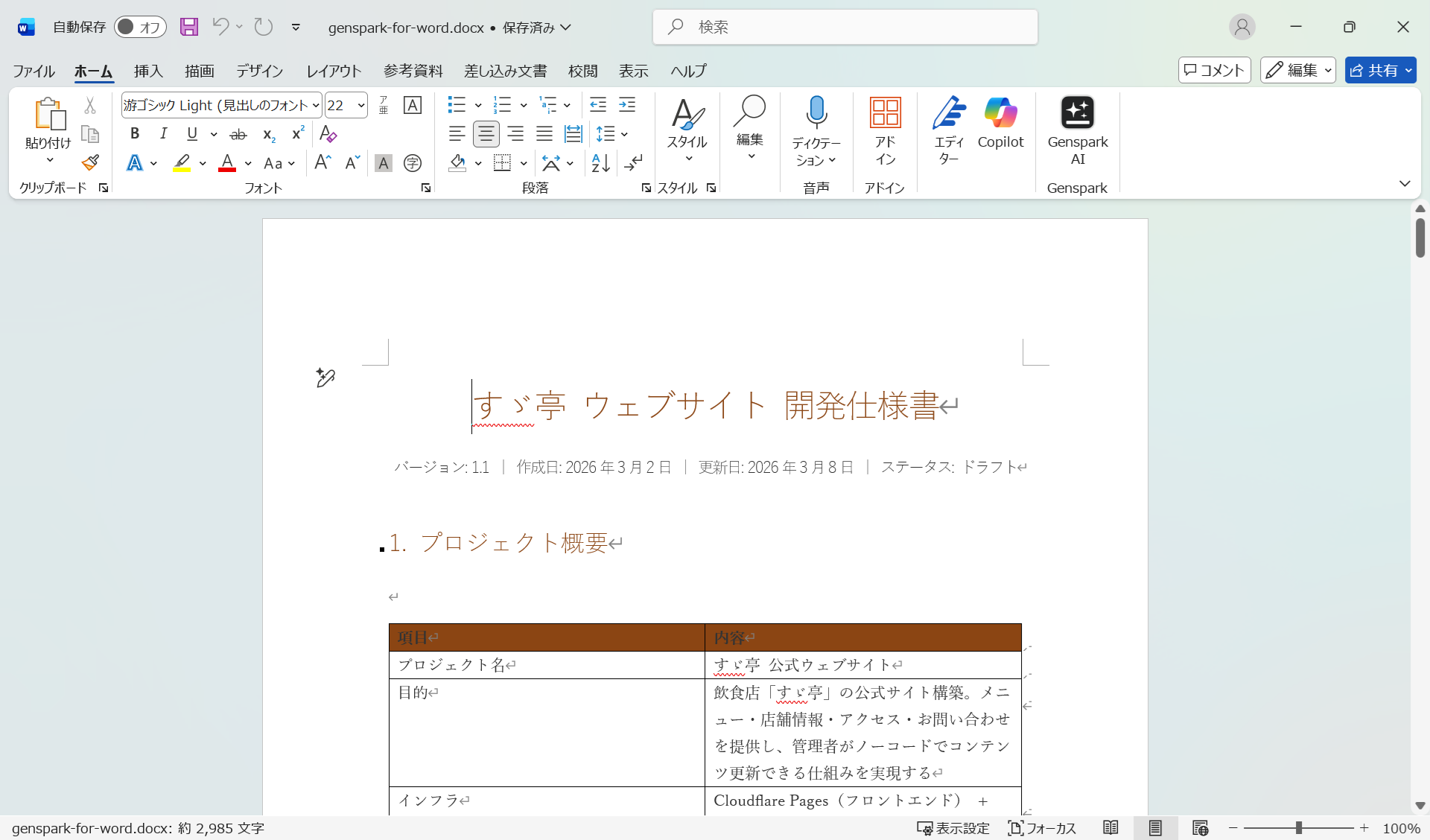
You can download the generated Word file to see the result for yourself.
Honest Assessment: Compared to PowerPoint & Excel
The result was underwhelming, to be honest. Despite asking it to format things "neatly," the main change was some text color adjustments. Compared to the PowerPoint add-in and Excel add-in, the Word version feels less mature at this point.
Compared to the PowerPoint and Excel add-ins, the Word version feels like it's still finding its footing. In response to "please format this neatly," the changes were mostly limited to some font color tweaks. More specific instructions might yield better results, but in this initial test it wasn't particularly impressive.
That said, this is pretty typical of Genspark — features that feel underwhelming at first often improve dramatically within a few months. I'm looking forward to seeing how this one develops.
Vague instructions tend to produce vague results. More specific prompts like "convert this paragraph to bullet points," "unify the heading levels," or "rewrite this sentence in formal language" are likely to give you more predictable outcomes.
Summary
Genspark 4.0's Office add-in series now covers Word as well as PowerPoint and Excel.
Genspark for Word Install Page
- Control Word editing and formatting with natural language instructions
- Casual phrases like "tighten the spacing" are understood and acted on
- Installation process is the same as the PowerPoint and Excel add-ins
- Currently less impressive than the PowerPoint and Excel versions, but future updates are expected
Check out the full Genspark 4.0 Office add-in series: Genspark for PowerPoint and Genspark for Excel.
For pricing details: Genspark Pricing Page (pricing details are further down the page)